

How Can We Help?
Text Area
The Text Area input field allows respondents to enter longer, open-ended responses, making it ideal for collecting detailed qualitative information. Unlike standard text input fields, which are typically used for short answers (e.g., names or single words), text areas provide more space for explanations, comments, and detailed feedback.
When to Use Text Area Questions
Use Cases:
- Detailed Explanations (e.g., “Describe your organization’s approach to risk management.”)
- Open-Ended Feedback (e.g., “Provide any additional comments on this assessment.”)
- Justifications & Context (e.g., “Explain why you selected your previous answer.”)
✅ Pros:
- Unlimited Response Length: Allows respondents to provide in-depth answers.
- Rich Qualitative Data: Captures context, justifications, and additional details.
- Greater Flexibility: Suitable for a wide range of free-text responses.
❌ Cons:
- Difficult to Analyze: Open-ended responses can vary widely, requiring manual review.
- Potential for Irrelevant Information: Some users may provide unnecessary or off-topic details.
- Inconsistent Formatting: Responses may differ in structure, making them harder to compare.
Tip: Use clear prompts to guide respondents toward structured, meaningful responses.
How to Use Text Area Questions in Rapid Assurance
- Select the “Text Area” option from the question type menu.
- Enter your question in the designated field.
- Set the number of rows in the context panel (to define the visible space for responses).
- Optionally provide guidance (e.g., “Limit your response to 500 words.”) to encourage concise answers.
Scoring & Compliance
- Text Area fields are informational and typically do not have scores.
- Responses are subjective and require manual review for insights.
- Can be used to supplement scored questions (e.g., “Provide an explanation for your selected compliance level.”).
Advanced Features
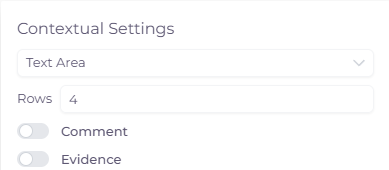
- Adjustable Row Size: Set the number of visible rows to define how much space users see for typing.
- Placeholder Text: Provide an example response to guide users.
- Clone & Save Favorites: If a well-structured question is effective, duplicate it or save it for reuse.
When to Use Text Area vs. Other Input Types
- Use Text Area when respondents need to provide detailed, paragraph-style answers.
- Use Text Input when only short, structured responses (e.g., names, single words) are needed.
- Use Radio Buttons, Drop-Downs, or Checkboxes when structured responses are required for scoring and comparison.